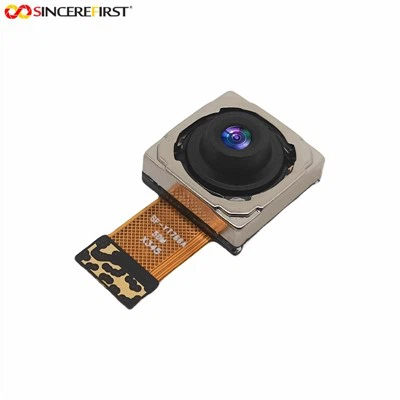
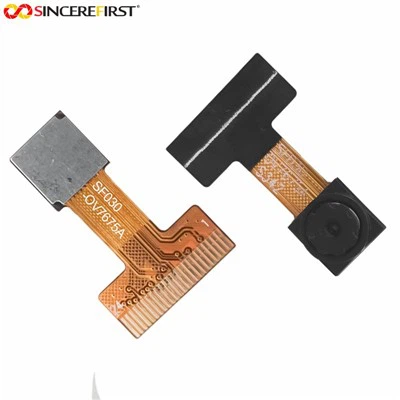
Hey there! As a supplier of CCTV camera modules, I often get asked about how to upgrade the firmware of these nifty little devices. Firmware upgrades are super important as they can improve performance, add new features, and fix bugs. So, in this blog post, I'm gonna walk you through the process step by step.
Why Upgrade the Firmware?
Before we dive into the how-to, let's talk about why you should even bother upgrading the firmware of your CCTV camera module. First off, new firmware versions usually come with enhanced security features. With the increasing number of cyber threats, keeping your camera's firmware up to date can help protect your surveillance system from hackers.
Secondly, firmware upgrades can boost the camera's performance. You might notice better image quality, faster processing speeds, or improved low-light performance after an upgrade. And let's not forget about new features! Manufacturers often add cool new functions like motion detection improvements or integration with other smart home devices in firmware updates.
Step 1: Check Compatibility
The first thing you need to do is make sure that the firmware upgrade you're planning to install is compatible with your CCTV camera module. Different camera models have different firmware requirements, so you can't just download any old upgrade and expect it to work.
To check compatibility, you'll need to know the model number of your camera. This is usually printed on the camera itself or in the product manual. Once you have the model number, head over to the manufacturer's website. Most manufacturers provide a list of compatible firmware versions for each camera model on their support pages.
For example, if you have an OV5640 Usb camera module, you'll need to find the specific firmware upgrade that's designed for it. Don't try to use a firmware upgrade meant for a different model, as this could cause your camera to malfunction.
Step 2: Backup Your Data
Before you start the firmware upgrade process, it's a good idea to back up any important data that's stored on your camera. This includes video recordings, settings, and any other information that you don't want to lose.
Most CCTV camera modules allow you to back up data to an external storage device like a USB drive or an SD card. Simply connect the storage device to your camera and follow the on-screen instructions to initiate the backup process. Once the backup is complete, you can safely proceed with the firmware upgrade knowing that your data is secure.
Step 3: Download the Firmware
Once you've confirmed compatibility and backed up your data, it's time to download the firmware upgrade. Head back to the manufacturer's website and navigate to the support section. Look for the download link for the firmware upgrade that's compatible with your camera model.
Make sure to download the firmware file to a location on your computer where you can easily find it later. It's also a good idea to check the file size and download speed before starting the download. Some firmware upgrades can be quite large, so it might take a while to download depending on your internet connection.
Step 4: Prepare the Upgrade
After the firmware download is complete, you'll need to prepare it for installation. This usually involves extracting the firmware file from the compressed format (like a ZIP or RAR file) and transferring it to a storage device that your camera can read.
Most CCTV camera modules support firmware upgrades via USB drive or SD card. So, insert a blank USB drive or SD card into your computer and copy the extracted firmware file onto it. Make sure to follow the manufacturer's instructions regarding the file naming convention and storage location on the storage device.
Step 5: Install the Firmware
Now comes the exciting part – installing the firmware upgrade! First, power off your CCTV camera module and insert the USB drive or SD card containing the firmware file into the camera. Then, power on the camera and wait for it to detect the firmware upgrade.
Depending on the camera model, you might need to follow some on-screen instructions to initiate the installation process. This could involve pressing a specific button on the camera or using a remote control to select the upgrade option. Once the installation process starts, don't interrupt it or power off the camera until it's complete. This could cause the upgrade to fail and potentially damage your camera.
The installation process can take anywhere from a few minutes to half an hour, depending on the size of the firmware upgrade and the processing speed of your camera. So, be patient and let the camera do its thing.
Step 6: Test the Camera
After the firmware upgrade is complete, it's time to test your camera to make sure everything is working properly. Power on the camera and check the image quality, video recording, and any other functions that you use regularly.
If you notice any issues or problems, don't panic. It's possible that there might be some minor glitches that can be fixed by resetting the camera or adjusting the settings. Refer to the manufacturer's support documentation or contact their customer support team for assistance if you're having trouble.
Other Camera Modules and Their Firmware Upgrades
We've talked a lot about the general process of firmware upgrades, but let's also touch on some specific camera modules that we offer. For example, the Imx290 Camera Module is a high-performance camera module that offers excellent image quality and low-light performance. Upgrading its firmware can further enhance these features and add new functionality.
Another great option is the 8MP Sony IMX334 CMOS 60FPS Smooth Video CCTV Camera Module. This camera module is perfect for applications that require smooth and high-quality video recording. By keeping its firmware up to date, you can ensure that it continues to deliver top-notch performance.
Conclusion
Upgrading the firmware of your CCTV camera module is a relatively simple process that can have a big impact on the performance and security of your surveillance system. By following the steps outlined in this blog post, you can safely and easily upgrade the firmware of your camera and enjoy all the benefits that come with it.
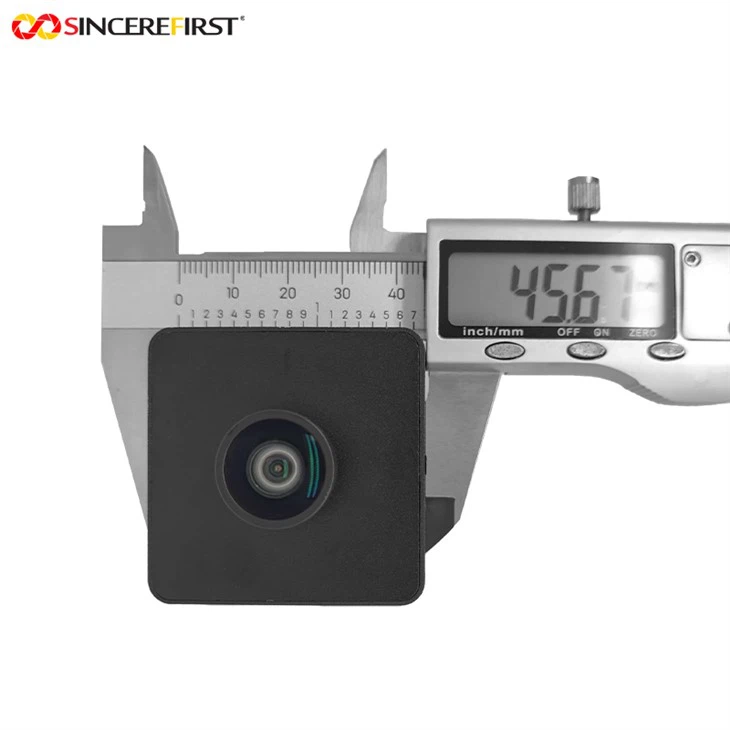
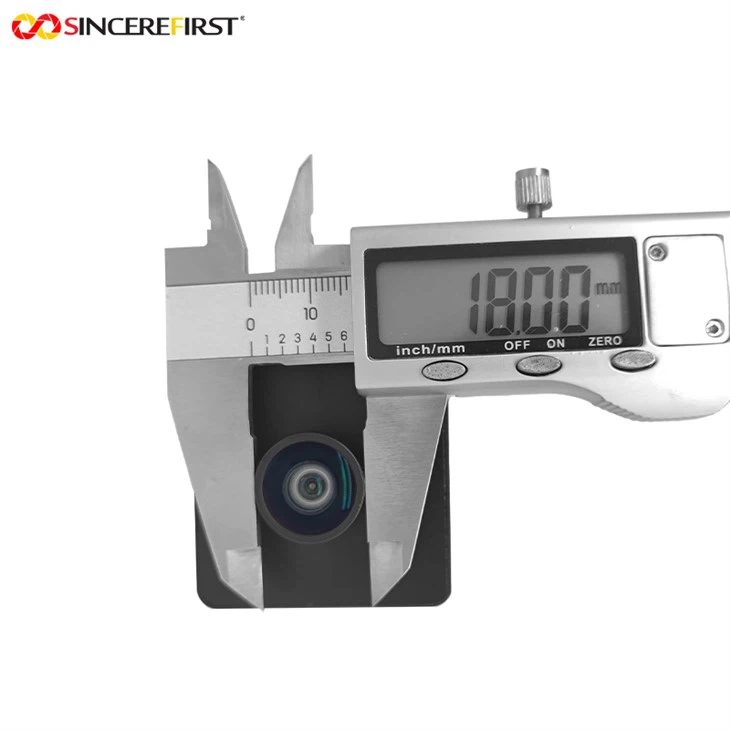
If you're in the market for a new CCTV camera module or need help with firmware upgrades, don't hesitate to reach out. We're here to provide you with the best products and support to meet your surveillance needs. Whether you're a homeowner looking to secure your property or a business owner in need of a reliable surveillance solution, we've got you covered.
References
- Manufacturer's product manuals and support documentation
- Online forums and communities for CCTV camera users