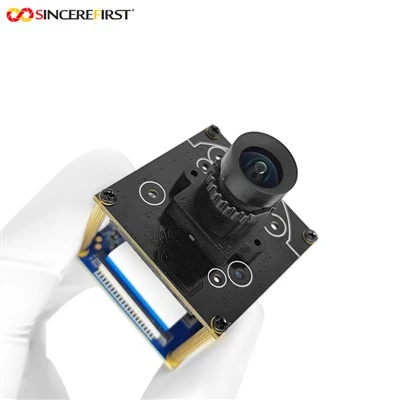
Yo, folks! As a supplier of CCTV camera modules, I get a ton of questions about how to adjust the white balance of these nifty devices. Today, I'm gonna break it down for you in a way that's easy to understand, even if you're not a tech whiz.
What is White Balance?
First off, let's talk about what white balance actually is. In simple terms, white balance is all about making sure that white objects in your video look white, no matter the lighting conditions. Different light sources have different color temperatures, and if your camera doesn't adjust for these differences, your footage might end up looking too blue, too yellow, or just plain off.
For example, if you're using your 8MP UHD Sony IMX415 Sensor CCTV USB Camera indoors under fluorescent lights, the light has a cooler color temperature. Without proper white balance adjustment, your footage might look bluish. On the other hand, if you're using it outdoors in the evening, the warm sunlight can make your footage look yellowish.
Why is White Balance Important?
You might be wondering, "Why does white balance matter?" Well, it can have a huge impact on the quality of your CCTV footage. Accurate white balance makes your video look more natural and professional. It helps you see details clearly and can even improve the overall mood of the footage.
Imagine you're using an Imx334 Camera to monitor a store. If the white balance is off, it might be harder to identify people or read labels. But with proper white balance, you can get a clear and accurate view of what's going on.
How to Adjust White Balance
Now, let's get into the nitty-gritty of how to adjust the white balance of your CCTV camera module. There are a few different methods you can use, depending on the camera you have.
Automatic White Balance (AWB)
Most modern CCTV camera modules, like the Imx344 Camera Module With Usb Interface, come with an Automatic White Balance (AWB) feature. This is a great option for beginners because it does the work for you. The camera analyzes the color of the light in the scene and adjusts the white balance accordingly.
To use AWB, simply turn it on in the camera's settings. The camera will continuously adjust the white balance as the lighting conditions change. However, AWB isn't perfect. In some situations, like when there are multiple light sources with different color temperatures, it might not give you the best results.
Preset White Balance Modes
Many cameras also offer preset white balance modes. These modes are designed for specific lighting conditions, such as daylight, cloudy, fluorescent, and incandescent. You can choose the mode that best matches the lighting in your environment.
For example, if you're using your camera outdoors on a sunny day, you can select the "Daylight" mode. This will adjust the white balance to make the colors look natural under sunlight. If you're indoors under fluorescent lights, the "Fluorescent" mode will give you better results.
Manual White Balance
If you want more control over the white balance, you can use the manual white balance setting. This involves taking a reference shot of a white object in the same lighting conditions as your scene. The camera will then use this reference to adjust the white balance for all subsequent shots.
To set the manual white balance, follow these steps:
- Find a white object, like a piece of white paper or a white wall.
- Position the object so that it fills the frame of your camera.
- Take a picture of the white object.
- Go to the camera's settings and select the manual white balance option.
- Use the camera's controls to adjust the white balance until the white object in the picture looks truly white.
- Save the settings, and your camera will now use this white balance for all future shots.
Tips for Adjusting White Balance
Here are some tips to help you get the best results when adjusting the white balance of your CCTV camera module:
- Test Different Settings: Don't be afraid to experiment with different white balance settings to see what works best for your specific situation.
- Consider the Lighting Conditions: Think about the type of light sources in your environment and choose the appropriate white balance mode or setting.
- Use a Color Chart: If you need very accurate white balance, you can use a color chart. These charts have different colors that can help you calibrate your camera's white balance more precisely.
- Check the Footage Regularly: Keep an eye on the footage to make sure the white balance is still accurate. Lighting conditions can change over time, so you might need to adjust the white balance periodically.
Conclusion
Adjusting the white balance of your CCTV camera module is an important step in getting high-quality footage. Whether you're using the automatic white balance, preset modes, or manual settings, taking the time to get the white balance right can make a big difference in the clarity and accuracy of your video.
If you're in the market for a new CCTV camera module, we've got a great selection to choose from. Our 8MP UHD Sony IMX415 Sensor CCTV USB Camera, Imx334 Camera, and Imx344 Camera Module With Usb Interface are all top-of-the-line products that offer excellent white balance adjustment options.


If you have any questions or want to discuss your specific needs, feel free to reach out. We're here to help you find the perfect CCTV camera module for your application.
References
- Camera User Manuals
- Photography and Videography Guides