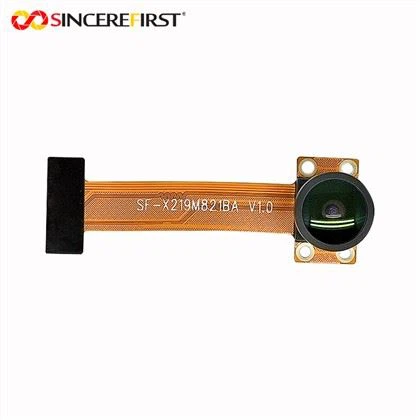
As a provider of Dvp Camera Modules, I understand the importance of being able to access recorded videos easily and efficiently. In this blog post, I'll guide you through the process of accessing the recorded videos on the Dvp Camera Module, covering various methods and considerations.
Understanding the Dvp Camera Module
Before we delve into accessing the recorded videos, let's briefly understand what the Dvp Camera Module is. The Dvp Camera Module is a high - performance camera solution that offers different megapixel options and features suitable for a wide range of applications, such as IoT projects, surveillance systems, and embedded vision applications. We offer several popular models, including the 5MP OV5640 ESP32 Sensor Cam Iot Module, 2MP Omnivision OV2640 DVP Camera Module, and 2MP OV2640 ESP32 Camera Module.
Prerequisites for Accessing Recorded Videos
- Power and Connectivity: Ensure that the Dvp Camera Module is properly powered and connected to the relevant device or network. If it's an IoT - based module, make sure it has a stable Wi - Fi or Ethernet connection.
- Recording Configuration: The camera module should be configured to record videos. This usually involves setting up the recording parameters such as resolution, frame rate, and storage location.
- Access Credentials: You may need specific access credentials, such as usernames and passwords, especially if the camera module is part of a secure system.
Methods of Accessing Recorded Videos
1. Local Storage Access
Many Dvp Camera Modules support local storage options, such as SD cards. Here's how you can access the recorded videos from local storage:
- Physical Removal: If the camera module uses an SD card for storage, power off the camera module safely. Then, carefully remove the SD card from the module.
- External Reader: Insert the SD card into an SD card reader connected to your computer. Once the computer detects the SD card, you can access the recorded video files through the file explorer. The video files are usually stored in a specific folder on the SD card, and their naming convention may follow a pattern related to the recording time and date.
2. Network - Based Access
If your Dvp Camera Module is connected to a network, you can access the recorded videos remotely.
- Web Interface: Most modern camera modules come with a built - in web interface. Open a web browser on your computer or mobile device and enter the IP address of the camera module. You may be prompted to enter your access credentials. Once logged in, you can navigate through the web interface to find the recorded video section. Here, you can view, download, or delete the recorded videos.
- Mobile Applications: Some camera modules have dedicated mobile applications available for iOS and Android devices. Download and install the app from the respective app stores. Connect the app to the camera module by entering the necessary connection details, such as the IP address or device ID. Through the app, you can easily access and manage the recorded videos on the go.
3. API - Based Access
For more advanced users or developers, API - based access provides a flexible way to access recorded videos.


- Developer Documentation: Refer to the developer documentation provided by the camera module manufacturer. The documentation will contain details about the API endpoints, request methods, and data formats.
- Custom Scripts or Applications: Using programming languages like Python or JavaScript, you can write custom scripts or develop applications to interact with the camera module's API. These scripts can be used to retrieve information about the recorded videos, download them, or perform other operations.
Troubleshooting Access Issues
- Connection Problems: If you're having trouble accessing the camera module over the network, check the network settings. Make sure the camera module and your accessing device are on the same network. You can also try restarting the camera module and the router.
- Storage Errors: If you can't access the videos from local storage, check if the SD card is corrupted. You can try formatting the SD card (make sure to back up any important data first) or replacing it with a new one.
- Software Bugs: Sometimes, software bugs can cause access issues. Check if there are any firmware updates available for the camera module. Updating the firmware can often resolve software - related problems.
Security Considerations
When accessing recorded videos, security is of utmost importance.
- Strong Passwords: Use strong, unique passwords for accessing the camera module. Avoid using default passwords, as they are easily guessable.
- Encryption: Ensure that the communication between your accessing device and the camera module is encrypted. This helps protect the recorded videos from being intercepted by unauthorized users.
- Regular Audits: Regularly review the access logs of the camera module to detect any suspicious activities.
Conclusion
Accessing the recorded videos on the Dvp Camera Module can be achieved through various methods, including local storage access, network - based access, and API - based access. By following the steps outlined in this blog post and considering the troubleshooting tips and security measures, you can ensure a smooth and secure video - accessing experience.
If you're interested in our Dvp Camera Modules or have any questions about accessing recorded videos, feel free to reach out to us for more information and to discuss your procurement needs.
References
- Manufacturer's User Manuals for Dvp Camera Modules
- Online Resources on Camera Module Technologies and Network Security