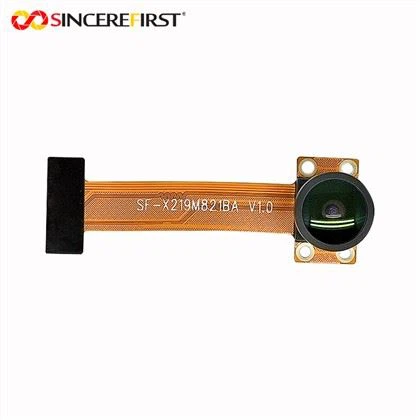
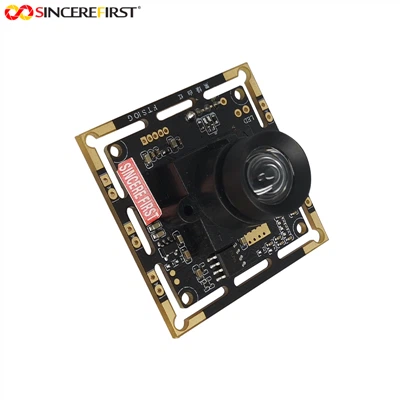
As a supplier of CCTV camera modules, I often receive inquiries from customers about how to transfer footage from a CCTV camera module to a computer. This process is crucial for various applications, including security monitoring, surveillance, and data analysis. In this blog post, I will guide you through the steps involved in transferring footage from a CCTV camera module to a computer, along with some tips and considerations.
Understanding the Basics
Before we delve into the transfer process, it's important to understand the basic components involved. A CCTV camera module typically consists of an image sensor, lens, and associated circuitry. The camera captures video footage, which can then be stored on a local storage device or transferred to a computer for further processing.


There are several ways to transfer footage from a CCTV camera module to a computer, and the method you choose will depend on the type of camera module, your specific requirements, and the available hardware and software.
Methods of Transferring Footage
1. Using a USB Connection
One of the simplest and most common ways to transfer footage is by using a USB connection. Many modern CCTV camera modules come with a USB interface, which allows you to directly connect the camera to your computer.
- Compatibility: Ensure that your computer has a USB port that is compatible with the camera module. Most cameras support USB 2.0 or USB 3.0 ports.
- Installation: Connect the camera to your computer using a USB cable. Your computer should automatically detect the camera and install the necessary drivers. If the drivers are not installed automatically, you may need to download them from the manufacturer's website.
- Accessing the Footage: Once the camera is connected and the drivers are installed, you can access the footage using the camera's software or a media player. Some cameras come with their own software, which allows you to view, manage, and transfer the footage.
For example, our OV5640 Usb camera module offers a convenient USB connection for easy footage transfer.
2. Using a Network Connection
If your CCTV camera module is network-enabled, you can transfer the footage over a local network or the internet. This method is suitable for remote monitoring and accessing the footage from multiple locations.
- IP Configuration: Configure the camera's IP address and network settings to ensure that it can communicate with your computer or network. This may involve setting up a static IP address or using DHCP.
- Network Protocols: Most network-enabled cameras support standard network protocols such as FTP (File Transfer Protocol), HTTP (Hypertext Transfer Protocol), or RTSP (Real Time Streaming Protocol). You can use software or tools that support these protocols to access and transfer the footage.
- Remote Access: If you want to access the footage remotely, you may need to configure port forwarding on your router and set up a secure connection, such as VPN (Virtual Private Network).
Our Imx290 Camera Module is a network-enabled device that provides reliable and efficient footage transfer over the network.
3. Using a SD Card
Some CCTV camera modules have a built-in SD card slot, which allows you to store the footage locally on an SD card. You can then remove the SD card from the camera and insert it into a computer's SD card reader to transfer the footage.
- SD Card Capacity: Choose an SD card with sufficient capacity to store the desired amount of footage. The capacity of SD cards can range from a few gigabytes to several terabytes.
- Formatting: Ensure that the SD card is formatted correctly before use. Most cameras support FAT32 or exFAT file systems.
- Transfer Process: Once the SD card is inserted into your computer, you can access the footage using a file explorer or media player. Copy the footage files to your computer's hard drive for further storage and analysis.
Tips and Considerations
1. Video Compression
Video footage can take up a significant amount of storage space. To reduce the storage requirements and transfer time, consider using video compression techniques. Most CCTV camera modules support various video compression formats, such as H.264 or H.265. These formats can significantly reduce the file size without sacrificing much video quality.
2. Data Security
When transferring footage, it's important to ensure the security of your data. If you are transferring the footage over a network, use secure protocols and encryption to protect the data from unauthorized access. Additionally, consider backing up the footage to a secure location to prevent data loss.
3. Software and Firmware Updates
Regularly update the software and firmware of your CCTV camera module to ensure optimal performance and security. Manufacturers often release updates that include bug fixes, new features, and improved compatibility.
4. Storage Management
As the footage accumulates, it's important to manage your storage effectively. Set up a schedule for deleting old footage or archiving it to external storage devices. This will help prevent your storage from running out of space and ensure that you can continue to record new footage.
Conclusion
Transferring footage from a CCTV camera module to a computer is a relatively straightforward process, but it requires some basic knowledge of the camera's features and the available transfer methods. By following the steps outlined in this blog post and considering the tips and considerations, you can easily transfer the footage and use it for your specific applications.
If you are interested in purchasing high-quality CCTV camera modules for your security or surveillance needs, please contact us to discuss your requirements. We offer a wide range of 8MP UHD Sony IMX415 Sensor CCTV USB Camera and other camera modules that are designed to provide reliable and high-performance footage capture and transfer.
References
- Manufacturer's documentation for CCTV camera modules
- Online resources on video compression and data security
- Technical guides on network configuration and remote access