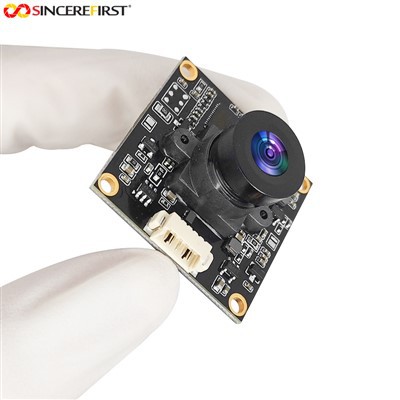
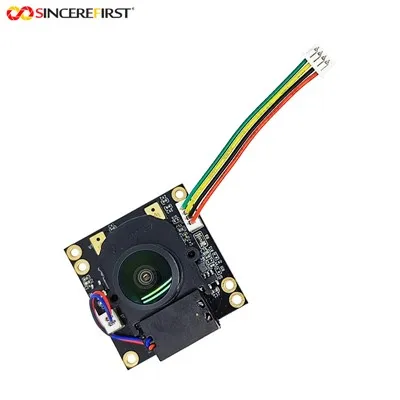
Hey there! As a supplier of the Imx291 USB camera, I often get asked about how to adjust the hue of this nifty little device. So, I thought I'd put together this blog post to share some tips and tricks on getting the perfect hue adjustment for your Imx291 USB camera.
First off, let's talk about what hue actually is. Hue is basically the color of the light that the camera is capturing. It's measured in degrees on the color wheel, with red being at 0 degrees, green at 120 degrees, and blue at 240 degrees. Adjusting the hue can really transform the look of your photos and videos, making them more vibrant, moody, or just plain cool.
Now, let's get into the nitty - gritty of how to adjust the hue of your Imx291 USB camera. The process can vary depending on the software you're using to access the camera.
Using Camera - Specific Software
Most of the time, the camera comes with its own dedicated software. When you open this software, look for a settings or configuration menu. There should be a section related to color settings. In this section, you'll likely find an option for hue adjustment. It might be labeled as "Hue", "Color Temperature", or something similar.
Once you've found the hue option, you can usually adjust it using a slider or by entering a numerical value. If you're new to hue adjustment, it's a good idea to make small changes and preview the results. For example, if you want to add a warm, sunset - like feel to your footage, you can nudge the hue towards the red end of the spectrum. A slight increase in the hue value will start to give your images a warmer, more inviting color.


Using Third - Party Software
If you prefer using third - party software like Adobe Photoshop or Lightroom for photo editing, or OBS Studio for video, the process is a bit different but still straightforward.
In Adobe Photoshop, once you've imported your photo taken with the Imx291 USB camera, go to the "Image" menu and select "Adjustments" and then "Hue/Saturation". A dialog box will pop up, allowing you to adjust the hue, saturation, and lightness. You can click and drag the hue slider to change the overall color of the image.
For video editing in OBS Studio, you can add a color correction filter to your camera source. Right - click on the camera source in the sources panel, select "Filters", and then add a "Color Correction" filter. In the filter settings, you'll find options to adjust the hue, among other things.
Troubleshooting Hue Adjustment
Sometimes, you might run into issues when trying to adjust the hue. For example, the colors might look too extreme or washed out. If this happens, first check the exposure settings of your camera. Overexposed or underexposed images can make hue adjustment look off. Make sure your camera is set to an appropriate aperture, shutter speed, and ISO.
Another thing to check is the white balance. Incorrect white balance can also affect how the hue adjustment looks. You can try setting the white balance to "Auto" or choose a specific preset like "Daylight", "Cloudy", or "Tungsten" depending on your shooting conditions.
Other Camera Options from Our Catalog
If you're interested in other camera options, we also offer some great alternatives. Check out our OV9281 Camera Module, which has its own unique features and capabilities. It's a great option for those looking for something a bit different.
We also have the 16MP IMX298 Fixed Focus USB Camera Modue. With its high - resolution capabilities, it's perfect for applications where you need sharp and clear images.
And for Android users, our 720p 30fps CMOS Sensor External USB Camera Module Digital For Android 11 is a great choice. It offers smooth video recording and is easy to connect to your Android device.
Wrapping Up and Invitation to Connect
Adjusting the hue of your Imx291 USB camera can really take your photography and videography to the next level. Whether you're a professional looking for that perfect shot or an amateur just having fun, these tips should help you get the most out of your camera's color capabilities.
If you're interested in purchasing the Imx291 USB camera or any of our other products, we're here to help. We can provide you with more detailed information, product specifications, and pricing. Don't hesitate to reach out to start a conversation about your camera needs. We're always ready to assist you in finding the best camera solution for your projects.
References
- General knowledge on camera color settings and adjustment techniques from years of experience in the camera industry.
- Documentation provided by the manufacturers of the Imx291 USB camera and related software.