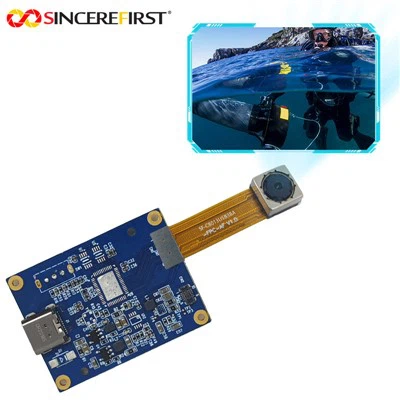
In today's dynamic world of digital content creation, having the right tools at your disposal can make all the difference. As a proud supplier of the Imx179 8mp USB Camera, I'm excited to share with you how this remarkable device can be seamlessly integrated with video editing software to elevate your video projects to new heights.
Understanding the Imx179 8mp USB Camera
Before we dive into the process of using the Imx179 8mp USB Camera with video editing software, let's take a moment to understand what makes this camera so special. The Imx179 8mp USB Camera is a high - performance imaging device that offers 8 megapixels of resolution, delivering sharp and detailed video footage. It connects to your computer via a USB port, making it incredibly easy to set up and use. Whether you are a professional videographer, a content creator on YouTube, or someone who just loves making home videos, this camera can meet your needs.
Setting Up the Imx179 8mp USB Camera
The first step in using the Imx179 8mp USB Camera with video editing software is setting it up correctly. Start by ensuring that your computer has an available USB port. Simply plug the camera into the USB port, and your computer should automatically detect it. In most cases, the operating system will install the necessary drivers, but if not, you can usually find them on the manufacturer's website.
Once the camera is recognized, you can start testing it. Launch the camera application on your computer, which could be the built - in camera app or a third - party webcam test software. You should see a live feed from the camera on your screen. Adjust the camera position and focus as needed to get the best view.
Selecting the Right Video Editing Software
There is a wide range of video editing software available in the market, each with its own features and capabilities. Some popular options include Adobe Premiere Pro, Final Cut Pro (for Mac users), DaVinci Resolve, and OpenShot (a free and open - source option).
When choosing video editing software, consider your skill level, the complexity of your projects, and your budget. If you are a beginner, a free and easy - to - use software like OpenShot might be a good starting point. For more advanced users and professional projects, Adobe Premiere Pro or Final Cut Pro can offer a wide array of features and professional - grade editing tools.
Connecting the Camera to the Video Editing Software
Once you have your video editing software installed and the camera set up, it's time to connect the camera to the software. The process varies slightly depending on the software you are using.
In many video editing programs, you can go to the settings or preferences menu and look for an option related to video input. Here, you should see the Imx179 8mp USB Camera listed among the available video sources. Select the camera, and the software will start receiving video footage from it.


If you encounter any issues with the connection, make sure the camera is properly plugged in and that the drivers are installed correctly. You can also try restarting both the camera and the video editing software.
Recording and Editing with the Imx179 8mp USB Camera
After connecting the camera to the video editing software, you are ready to start recording. In most video editing programs, there is a record button that allows you to start and stop capturing video. You can adjust the camera settings such as exposure, white balance, and focus directly within the camera software on your computer or use the on - screen controls provided by the video editing software.
Once you have recorded your footage, the real fun begins - the editing process. You can trim clips, add transitions, insert text, and apply various effects to your video. The high - resolution footage from the Imx179 8mp USB Camera will give you plenty of room to work with, allowing you to create a polished and professional - looking video.
Tips for Using the Imx179 8mp USB Camera with Video Editing Software
- Lighting: Good lighting is crucial for high - quality video. Use natural light or studio lights to ensure that your footage is well - illuminated. Avoid harsh shadows or overexposure.
- Stability: Use a tripod or a stable mount to keep the camera steady during recording. This will prevent shaky footage, which can be distracting for viewers.
- Audio: Pay attention to the audio in your videos. Use an external microphone if possible to get clear and crisp sound.
- Experiment with Settings: Don't be afraid to experiment with the camera settings to achieve different looks and styles. You can play around with exposure, contrast, and color saturation to make your videos stand out.
Exploring Similar Camera Modules
If you're interested in exploring other camera options, we also offer a variety of high - quality camera modules. For instance, the 8MP IMX578 IMX415 IMX577 USB3.0 HDMI WIFI Camera Module provides additional connectivity options with USB3.0, HDMI, and Wi - Fi. It offers high - resolution imaging and the flexibility to transfer data in different ways.
The 2MP 1080p Global Shutter High Speed 60 FPS Usb Camera Module is ideal for applications that require high - speed capture. With a global shutter, it can capture fast - moving objects without distortion, and the 60 FPS ensures smooth video playback.
The 4K IMX317 USB Camera Sensor Module is perfect for those who demand the highest level of video quality. With 4K resolution, it can capture stunningly detailed footage, making it suitable for professional video production and high - end content creation.
Contact for Purchase and Consultation
If you're interested in purchasing the Imx179 8mp USB Camera or any of our other camera modules, we'd love to hear from you. Contact us to discuss your specific needs, whether you're looking for a camera for personal use, a small business project, or a large - scale professional production. Our team of experts is ready to provide you with detailed information and guidance to help you make the right choice.
References
- Camera User Manuals: Refer to the official user manuals of the Imx179 8mp USB Camera, 8MP IMX578 IMX415 IMX577 USB3.0 HDMI WIFI Camera Module, 2MP 1080p Global Shutter High Speed 60 FPS Usb Camera Module, and 4K IMX317 USB Camera Sensor Module for detailed technical specifications.
- Video Editing Software Documentation: Check the official documentation of your chosen video editing software (e.g., Adobe Premiere Pro, Final Cut Pro, DaVinci Resolve, and OpenShot) for information on connecting external cameras and using their features.